Software Requirements:
| • | At least version 5 of PHP |
| • | At least version 3 of MySQL |
| • | PHP Safe Mode = Off |
| • | PHP File Uploads = On (to use the file upload features) |
| • | PHP MySQL Functions Available |
| • | Curl With SSL Available (needed by some payment gateways) |
| • | PHP fsockopen-function is working |
| • | To use AShop V: IonCube decryption is working and: the AShop Software license server can be reached |
Pre-installation Test Script - ashoptest.php
Before installing the program files, test the site to make sure that all of the server requirements are met. Download the pre-installation test script. Instructions are included with it in a text file. Run the ashoptest.php script from a browser. If all of the tests pass, go ahead with the installation.
License Agreement
AShop is protected under US and International copyright laws. The AShop V software is licensed for use per domain. Installing and using the software signifies that you have read and agree to the terms of our software license agreement.
Software Registration
If you are installing the AShop V software, a registration key is required to activate the program. A free 30-day trial key can be used once for a domain. Permanent registration keys are available through our online store. No registration key is required when you install the free AShop GPL software and it does not require IonCube.
Installation of Software & Database
Install AShop
| 1. | Unzip the AShop program files on your local computer. |
| 2. | Ensure that your FTP client is set to upload images in binary mode or uses an automatic mode detection which is common in newer FTP clients. Upload the AShop files and folders to the server. The AShop files and folders may be installed in the public root directory or in a subdirectory. The AShop directory structure must remain the same as in the distribution package for each installation. |
|
OR |
|

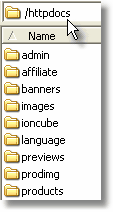
Note: If there is a lot already going on in the public root or you are not sure, it is safer to install AShop in a subdirectory.
| 3. | Depending on the server configuration, you may need to change permissions of the following directories and files to 777. |
| • | admin/receipts (if you want to save original customer receipts) |
| • | banners |
| • | catalog |
| • | images |
| • | images/logo.gif |
| • | ioncube |
| • | previews |
| • | prodimg |
| • | products |
| • | updates |
And for AShop V the following additional folders:
| • | emerchant/invoices |
| • | emerchant/mail |
| • | members/files |
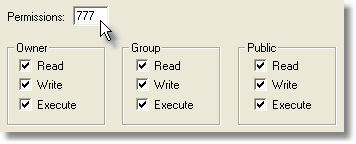
Note: You should NOT set permissions on everything to 777. In most cases the server will then prevent any of your AShop scripts from working, for security reasons. Only set 777 permissions on the file and folders mentioned above and leave the permissions on everything else unchanged.
Note: .htaccess files are included in the products and updates directories to protect product files. These files may not appear within your FTP explorer on the server side after you have uploaded them, because a file with a name that begins with a punctuation mark is treated as a hidden file in Unix/Linux, but can usually be seen within your hosting services online file manager.
| 4. | Create a database for AShop and add a user with a password to the database. If you do not have access to create a MySQL database on your server, then contact your web host technical support to have this done for you. You will need the path to the database (if it is not localhost), the database name, user name and password. The user must have all privileges for database table mods and creation of new tables. |
| 5. | Depending on the server configuration you may now be able to open the install.php page on your site to setup the database parameters in your browser. To do this, enter something like this into your browser address bar: http://www.yourdomain.com/install.php or http://www.yourdomain.com/ashop/install.php depending on where the AShop files and directories are located. If this only gives you an error message, you will need to open config.inc.php in a text editor such as Windows Notepad and edit the following variables, then upload the changed file and run install.php: |
$databaseserver = "location of the mySQL database"
The database is usually located at "localhost". If the database is hosted remotely or on a different server, this setting may be something like "mysql.server_name.com" or http://mysql.server_name.com.
$databasename = "name of the database that you created in mySQL"
$databaseuser = "user name that you added to the database that you created"
$databasepasswd = "password for the user name that you added to the database"
Note: Changing the $noinactivitycheck variable in config.inc.php to "true" will deactivate the inactivity time out in your AShop admin panel.
| 7. | If you are installing AShop V, enter your name, email address, and Registration Key Code in the spaces provided. This step does not exist in the AShop GPL installation. |
8. Remove the install.php file from the server. Installation of the program files and database is now completed.
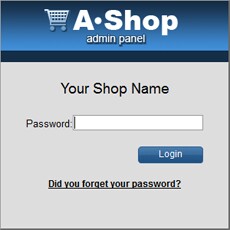
The next page will be the Administration Panel login. The administrator username is: ashopadmin, though this is only required if you are using the AShop V shopping mall, otherwise only the password needs to be entered. The default password for the administrator is "ashopadmin". Login and setup the Configuration, then open Catalog->Edit Catalog to add categories and products. For security we recommend that you change the administrator password.
Login to the Administration Panel any time by opening the /admin/login.php page.
Example: http://www.yourdomain.com/ashop/admin/login.php
Setup Of Shopping Cart Design, Layout and Selling Options
Customize The Shopping Cart
After the initial installation of program files and the database is completed, the shopping cart can be customized and configured in various ways. Shopping cart pages, receipts, email notices, images, buttons, and page text for each language can be modified to suite your needs. A sample set of product categories and products are installed for you but these can also be modified or removed. Here is a quick list of the most important considerations during initial setup.
Custom Page Templates
If you have not already seen the tour of AShop, go back and look at the section about page templates. It describes how page templates are included by the program. HTML templates are simply HTML web pages with placeholder codes where the shopping cart content should appear. A separate page template is used for the catalog, delivery, checkout, affiliate pages and wholesale catalog.
Note: You should not edit the php files to change the layout! Always edit the templates and/or CSS and image files for this purpose. The php scripts can be edited too, but this requires knowledge of php programming.
Layout Menu
Login to the admin panel. In the Configuration->Layout menu, set the default colors, sizes, fonts, widths, borders, thumbnail image size, and various other parameters, which are used in the dynamically generated areas of the shopping cart pages. These are applied to the shopping cart through a dynamic CSS stylesheet: includes/ashopcss.inc.php. A sample static CSS file is also included for your reference: css/ashop.css. It gives you a complete list of all the styles used by AShop, which you can override with your own CSS code to get full control over all the layout elements.
Pre-designed Themes
If you don't need custom page templates and you just want to begin using the cart with a canned look, select a theme in the Layout menu. Themes can be a complete collection of page templates with buttons and pre-configured Layout parameters. Or, themes may only include a set of buttons, or only Layout parameters. Each them has a configuration file, which specifies how much it does and sets Layout parameters. The parameters in the theme.cfg.php file can be set so that the theme's config settings override the admin panel Layout settings and if the theme includes page templates, they can override the root AShop page templates.
What! No themes to select from? There is a selection of themes and buttons on our site, which may be downloaded for free and used with AShop. Select a theme package, download it to your computer and unzip it. Upload the folder containing the theme to the themes directory where AShop is installed. Then, select the theme in the Layout menu.
Language Sets
Each supported language has a unique set of files called a Language Set. When a language is selected the program uses the corresponding language set. Each language set includes a set of images, a set of language text files, and a set of receipt templates. To change the text in shopping cart pages, edit the corresponding language file(s). The program file distribution packages contain only an English language set. More language sets are available for download from our site.
Payment Processing Options
The shopping cart supports a variety of payment methods and integrates with most popular payment services such as Authorize.net, PayPal, Verisign, Card Services International, WorldPay, and many more. The degree of difficulty to set up each payment option varies widely. Instructions are provided as needed for the payment services that are supported by AShop. If you do not find instructions for your payment service in this help documentation, see if it is listed in the payment processor cross reference chart. There might not be instructions if the payment option requires only the merchant ID to be entered in AShop. If a payment service is not listed in the cross reference chart, it is probably not supported by AShop.
Time Zone Offset
Many times the server time is different than your time zone. To adjust the time stamp for orders and stats, set the time zone offset in Configuration > Shop Parameters > Advanced Options. The value of the offset is in seconds. To add time enter only the digits. To subtract time, enter a minus sign in front of the digits. Example, Your time zone is 2 hours later than the time zone of the server. To adjust the time so that it matches your zone on receipts and notices, you would enter -7200, which is minus (60 seconds times 60 minutes times 2 hours).
Email Sending Options
If your hosting provider does not support sending email directly through the built-in mail function in php, you can configure your site to use an external mail server to send receipts, signup confirmations and all other messages that the shopping cart deliver by email. This can also be useful if your hosting provider limits the number of messages you can send per day or per hour. Enter the SMTP server name and login details on the page: Configuration > Shop Parameters > Advanced Options.
Sales Taxes
If you are selling products that require sales tax calculations, visit Configuration > Taxes.
Shipping Calulations
If you are selling products that require shipping calculations, visit Configuration > Shipping.
Purchase Agreement Required Before Checkout
A purchase agreement may be included with acceptance required before checkout and payment. Create a file named agreement.txt. Put text or HTML content in the agreement.txt and upload it to the directory where AShop is installed. There is an agreementEXAMPLE.txt file included with the new installation packages. The agreement will then be required for each order before checkout. Note: This is completely separate from individual product license or terms of sale agreements.
Affiliate Program
If you are using the affiliate program, set up the default commission values before adding products.
Fulfilment Notices & Automated Processes
Email notices can be sent automatically based on which products are ordered. A fulfilment option can also be used to activate third-party programs or services. To send fulfilment notices or activate fulfilment automation, set up the fulfilment options first and then assign each product to a fulfilment option.
Technical Support
If you run into trouble, contact us. Technical support and software updates are provided if you have an active support plan. The support plan costs $120 per year and can be purchased through a link on the "Check for updates" page in your admin panel or through the AShop Software website.