From the Administration Panel main menu, select Customers. A top menu bar appears and the Customers and Messaging page opens with customers listed. From the top menu bar, select Sales Reports. Sales Reports may also be opened by clicking on the Sales Reports icon,  , next to the Sales quick stats in the administration panel index page.

Report Filters
Report filters limit the data that is included in each report.
| • | Transaction Type: Retail, Wholesale, Auction or All |
| • | Payment Status: Unpaid, Paid, Chargebacks or All |
| • | Shipping Status: Shipped, Unshipped or All |
| • | Date Range From: date, To: date |
Sorting and Grouping
The filtered report data may be grouped and sorted to view the data from different perspectives.
| • | Order By: Date, Amount, Customer ID, Order ID, Affiliate, Product, Downloadable Product, Physical Product |
| • | Sort Order: Ascending or Descending order. |
View - Download
The View button display the report in the browser, but different data and links appear in the right column. Download exports the report data in a .csv file.
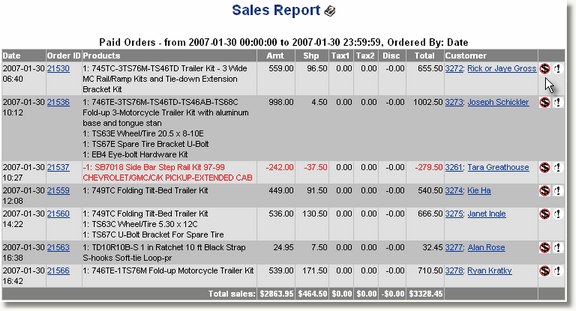
View - Sales report is shown with date, order ID, products, amounts, customer and affiliate links. The last column has icons that can be clicked to take action with each order.
Chargebacks - Reversals
A chargeback in AShop V creates a transaction equal and opposite to the original transaction. The reverse transaction is dated with today's date so that the sales reports can be reconciled with bank deposits. To chargeback an order and the corresponding affiliate commissions, click on the Cancel Sale icon,  , next to each order record.
Edit Order
The edit icon will let you change the status of an order. The status is shown to the customer on their order history page. If the order contains physical products that will be shipped to the customer, you will be able to control the shipping status of each product. When all products are marked as "shipped" by setting the remaining number of unshipped products to zero, the entire order will be switched to shipped status.
Resend Receipt and Reactivate Orders
Receipts may be resent and download limits may be reset at the same time by clicking on the Reactivate icon. 
See: Resend Receipt
Unpaid Orders will have a payment icon  and a send reminder icon
  . Click the payment icon to mark the order as paid and optionally send a receipt for the payment. Click the reminder icon to send an email to the customer. A reminder message is automatically generated with the order reference number and a link to pay online through the shopping cart checkout. The message may be edited before sending.
Sales Office history: Payment receipts and reminder messages are saved in the Sales Office history for each customer. You will find an icon  in each customer's profile, which will open the Sales Office history for that customer.
Download
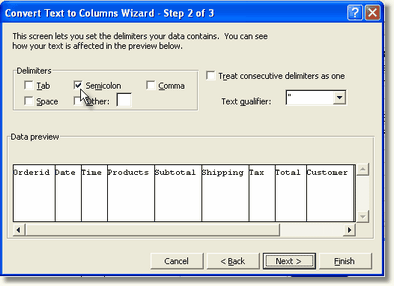
When the Download button is selected, the sales report data is exported in a .csv file, which can be imported to Microsoft Excel. The fields are separated by a semicolon. To separate the data into columns, open the csv file in Excel. If the separator is not already set to semicolon, all of the data fields will appear in the first column. To separate the fields into columns within Excel, Select (highlight) the column that contains the data and then select Data > Text In Columns. Select delimited, then click Next and set the separator to semicolon. This process may be slightly different for each version of Excel.
screen shot from Microsoft Excel 2000
Preliminary Orders
A preliminary order is created each time a customer begins to add products to his/her cart and goes to the checkout page. This preliminary order is then turned into a completed paid or unpaid order once the customer has gone through the checkout process. If the customer instead decides to abort the checkout process by clicking the Continue Shopping button, the preliminary order will be deleted. If the customer aborts the checkout process by closing their browser or going straight to a different web page, for example through a bookmark, the preliminary order will remain. Because of this, the database of an AShop shopping cart will usually contain lots of preliminary orders that are never completed.
Another reason why a preliminary order might not be completed is if the payment processor fails to register the order with the AShop order processing script. This could happen, for example, if there is a temporary network outage or if there is a problem with the payment processor of some sort. In this case, the preliminary order can be manually completed by the shop administrator by looking it up in the sales reports. This can be done by entering the order ID of the preliminary order, which will then be located and shown as a form that can be filled in to complete it.

Select a payment option, verify the customer's shipping address and enter information as needed, and then click the Submit button to activate the order. Payment is recorded in AShop for the option selected so that the order appears in sales reports for Paid orders. The receipt, order notice, and fulfilment notice are sent in the same way as when normal orders are processed. For downloadable product orders, a link and password will be included. For key code products, the key code(s) will be included in the customer's receipt.