| · | Tangible products may be taxable and require that shipping charges be calculated by the shopping cart. If this is the case, consider upgrading to AShop Deluxe.
|
| · | Downloadable products are files or zipped folders that are stored securely in a protected directory.
|
|
|
Before adding any products, set the Thumbnail Image Size in Layout.
|
|
|
| To add a product, From the Administration Panel, select Edit Catalogue, then:
|
|
|
| 1. | Select a category on the left side that the product will be added to. If one does not exist, you must first add a new category.
|

|
| 2. Click on the Add Product button at the top of the page.
|
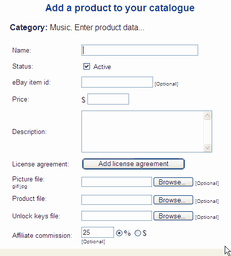
| 3. | Enter the name, price, and description. Note: HTML may be used in the description box to include larger images or link to product detail pages.
|
|
|
|
| Options
|
| · | eBay Item Number - Integrate eBay - PayPal payments to the AShop shopping cart.
|
| · | License Agreement - If the product requires a license agreement, click the License Agreement button and enter the license agreement text.
|
| · | Picture File - To upload a thumbnail image, navigate to a gif or jpg image or leave this box blank. The thumbnail image size should first be set in Layout.
|
| · | Downloadable Products: Browse to the product file. Note: See important instructions if the product file is 2 MB or larger!
|
| · | Default Affiliate Commission as a percentage of the product price or as a fixed currency amount.
|
|
|
| Third Party Software Integration
|
| AShop will optionally integrate with several popular PHP applications such as mailing list, bulletin board, and password management programs. If the third party application is installed within the same server account and the path is set within the admin/config.inc.php, a drop-down selection box will appear on the add product or edit product pages. Select the group that this product is to be associated with.
|
| See Installation of AShop - Third Party Software Integration.
|
|
|
| 4. | Click "Submit" to save the product information and upload the files.
|
| If you are uploading product files: Depending on the size of the image and product files and the type of Internet connection, the upload process may take a few minutes or more. Some browsers will display a progress meter in the status bar at the bottom of the browser.
|
| After submitting the product information, the Shipping Options page will open.
|
|
|