|
Shop Parameters
|
Previous Top Next |
| From the AShop Administration main menu, click Store Configuration on the left side menu. This will open the Configure AShop menu. Click on the "Shop Parameters" link.
|
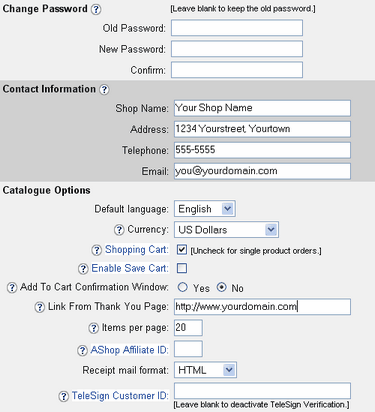
| After installing AShop, the administrator's password should be changed. Enter the old password, then enter the new password twice.
|
| Note: If you forget and lose your password, you can look it up from the mySQL database "user" table. Most servers provide a control panel tool such as phpMyAdmin for browsing records.
|
| The password must be alphanumerical. Special characters would cause the database to be unable to store the new password. Try your old password. If it doesn't work you will need to reset the password using a database management tool such as phpMyAdmin or if you have no access to such a tool you will need to reset the entire database (for example: delete it and create it again).
|
|
|
|
|
| Shop Name
|
| The Shop Name will display in the browser title bar of the catalogue page and in the product delivery page by default. It also displays in the "From" e-mail field of customer receipts and affiliate messages. It is recommended that you do not use HTML tags or special characters to format the text in the Shop Name field as most mail servers will reject messages with tags in the "From" field of the message header and special characters, such as ™ may not appear correctly in e-mail messages.
|
| Note that if a page template for the catalogue, delivery, or affiliate sections is present, the page title within the template file will display in web page browser title bars instead of the Shop Name setting.
|
|
|
| Address
|
| The store mailing address is displayed on the product delivery page.
|
|
|
| Telephone
|
| The Telephone number appears in the store or organization contact information, which is displayed on the product delivery page.
|
|
|
| E-mail
|
| The store administrator's e-mail is where notices of sales transactions and downloads are sent and is used as the return address for customer e-mail receipts. This e-mail address will also display on the product delivery page.
|
|
|
|
|
| Currency
|
| Set the currency for what will display in the catalogue and within receipts and order notices. The currency that is set here also controls which payment options are available. Only payment options that support the selected currency will be available within Payment Options.
|
|
|
| Shopping Cart
|
| The Shopping Cart check box selects whether the shopping cart basket will be displayed for multiple items to be purchased in a single transaction. For a description of how this works, see Shopping Cart Catalogue.
|
|
|
| Enable Save Cart
|
| When this box is checked, a save cart option will appear in the View Cart page.
|
|
|
| Confirm Add To Cart
|
| A small window pops-up when a product is put in the cart to confirm the buyer's intention and also to view and agree to terms of sale (if set) and to select product attributes (if set). For products that do not have terms of sale requirements or selectable product attributes, the confirmation window can be set to require confirmation or not.
|
|
|
| Link From Thank You Page
|
| After successful receipt of payment a login page is presented to the customer. Below the name and address of your store, there is a link that says "Back to [Shop Name]!" This sets that link URL.
|
|
|
| Items Per Page
|
| Sets the number of items to be displayed on one page in the product catalogue. If more than this number of items exist in the chosen category or search result, the items will be split up on separate pages that can be accessed by clicking a page number located beneath the products.
|
|
|
| AShop Affiliate ID
|
| To earn commissions by referring visitors to us, sign up for the AShop Software affiliate program and enter your affiliate ID here. When an affiliate ID is saved, the small "Powered by AShop" logo will appear below the categories in the catalogue. It will link with your affiliate ID to our affiliate tracking and sales. If the AShop Affiliate ID box is left blank, the AShop logo and link does not appear on the pages.
|
|
|
| Receipt Mail Format
|
| Select whether you want your eMailed receipts to be in HTML or Plain Text format.
|
|
|
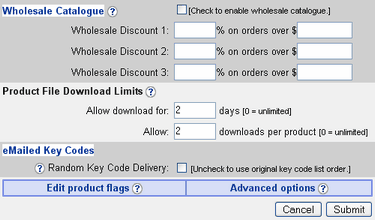
| Wholesale Catalogue
|
| The wholesale catalogue is optional. Check the box to activate it. See the Wholesale Catalogue topic for more information about how this works.
|
|
|
| Wholesale Discount Levels
|
| The wholesale discount levels only apply to the wholesale catalogue.
|
|
|
|
|
| Allow Download For
|
| A password is e-mailed to customers upon receipt of payment. This password is required to access the downloadable products. The password will expire after the number of days that is set in the Allow Download For box. Setting the allowed download days to 0 disables that restriction.
|
|
|
| Allow (quantity) Downloads Per Product
|
| Each password will work to download a product file this many times within the number of days that Allow Download For is set to. Set it to 0 and any number of downloads are allowed.
|
|
|
|
|
|
|
After editing the Shop Parameters, click the Submit button to save changes to the database.
|
| Click cancel or the browser back arrow to discard the changes.
|
|
|
|
|
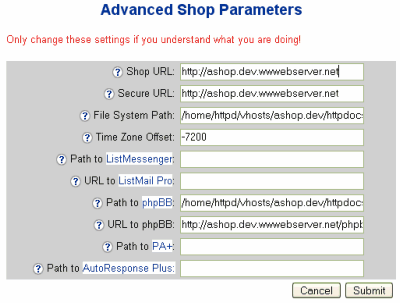
| At the bottom of the Shop Parameters page click the Advanced Options link to set the ashopurl, ashoppath, time-zone offset, or path to third party software.
|
|
|
|
|
|