
Note: OrderForm provides most shopping cart functions within local web pages. For a simple method of creating single item order links within local HTML web pages, remote sites, or email messages, see Order Links.
The pages that use OrderForm must be within the AShop directory or below it.
Method A.
Edit the configuration file for the web server (example is for apache) and add:
AddType application/x-httpd-php .php .phtml .php4 .php3 .html .htm
Method B.
Edit the directory configuration file (.htaccess for apache) and add:
AddType application/x-httpd-php .php .phtml .php4 .php3 .html .htm
Note: An example file htaccessORDERFORM.txt is included with the AShop distribution folder.
Note: All of the following code is included in an example file orderform.html that is distibuted with AShop. The following links in the following code assume that the pages are in the same directory as AShop. Modify the links as needed depending on where the pages are in relation to AShop.
| 2. | Place the following code within the header of the HTML pages that are to use OrderForm.
|
<!-- Start AShop Deluxe OrderForm Head Script -->
<SCRIPT LANGUAGE=JavaScript TYPE="TEXT/JAVASCRIPT">
<!--Hide script from old browsers
function buyItem(itemno, discountcode, quantity)
{
if ((quantity > 0) && (discountcode != null) && (discountcode != '')) {
window.open("buy.php?item="+itemno+"&discount="+discountcode+"&quantity="+quantity,"_blank","toolbar=no, location=no, scrollbars=no, width=300, height=300");
}
else if (quantity > 0) {
window.open("buy.php?item="+itemno+"&quantity="+quantity,"_blank","toolbar=no, location=no, scrollbars=no, width=300, height=300");
}
return false;
}
function newWindow(newContent)
{
winContent = window.open(newContent, 'nextWin', 'right=0, top=0,width=600,height=600, toolbar=no,scrollbars=yes, resizable=yes')
}
function showlicense(product)
{
window.open("license.php?"+product,"_blank","toolbar=no, location=no, scrollbars=yes, width=500, height=600")
}
function checkLicense(form)
{
if (form.acceptlicense.checked) form.submit();
else {
w = window.open("","_blank","toolbar=no, location=no, scrollbars=no, width=300, height=150");
w.document.write('<html><head><title>You must accept the license agreement!</title></head><body bgcolor="#FFFFFF" text="#000000" link="#000000"><center><font face="Arial, Helvetica, sans-serif" size="3">To be allowed to buy and use this product you have to accept the license agreement!<br><br><font size="2"><a href="javascript:this.close()">Close this window</a></font></font><br></center></body></html>');
}
}
function cancelSubmit()
{
return false;
}
//Stop hiding script from old browsers -->
</SCRIPT>
<?php
include "admin/config.inc.php";
include "counter.php";
$db = @mysql_connect("$databaseserver", "$databaseuser", "$databasepasswd");
@mysql_select_db("$databasename",$db);
$subtotal = 0;
$items = explode("a", $basket);
$arraycount = 1;
if ($items[0] && count($items)==1) $arraycount = 0;
for ($i = 0; $i < count($items)-$arraycount; $i++) {
$thisitem = explode("b", $items[$i]);
// Get the products price from the database...
$sql="SELECT price FROM product WHERE productid=".$thisitem[count($thisitem)-1];
$result = @mysql_query("$sql",$db);
if (@mysql_num_rows($result) == 0) {
$price = 0;
} else {
$price = @mysql_result($result, 0, "price");
}
eval ("\$thisproductdiscount = \$discount".$thisitem[count($thisitem)-1].";");
if ($thisproductdiscount) {
$sql="SELECT * FROM discount WHERE productid=".$thisitem[count($thisitem)-1];
$result2 = @mysql_query("$sql",$db);
$discountcode= @mysql_result($result2, 0, "code");
$discounttype = @mysql_result($result2, 0, "type");
$discountvalue = @mysql_result($result2, 0, "value");
$discountcookiestring = md5($thisitem[1].$discountcode."ashopdiscounts");
if ($thisproductdiscount == $discountcookiestring) {
if ($discounttype == "%") $price = $price - ($price * ($discountvalue/100));
else if ($discounttype == "$") $price -= $discountvalue;
}
}
$price = $price * $thisitem[0];
$subtotal += $price;
}
?>
<!-- End AShop Deluxe OrderForm Head Script -->
| 3. | Place the cart subtotal box, and shopping cart buttons in the page by inserting the following.
|
<!-- Shopping cart subtotal text box and view cart and checkout buttons. The "amount" field must be present only one time within the body of the html. If you don't want the subtotal to appear, change the field type from "text" to "hidden". Place the view cart and checkout links in convenient locations on the page. If you don't want the view cart or checkout links to appear, omit the links. -->
<form name="shoppingcart">
<table width="100%" cellpadding="2" cellspacing="0" border="0" align="right">
<tr>
<td width="819" align="right" bgcolor="#CCCCCC"><font face="Arial, Helvetica, sans-serif" size="2" color="#000000">Subtotal:
$ </font><font face="Arial, Helvetica, sans-serif" size="2">
<input type="text" name="amount" style="border: 1px solid black; background: #ffffff; width: 60px; font: 11px verdana, arial, helvetica; color: #000000;" size="6" readonly value="<?php echo number_format($subtotal,2,'.',''); ?>">
</font></td>
<td width="76" bgcolor="#CCCCCC">
<div align="right"><a href="basket.php"><img src="images/viewcart.gif" alt="View Cart:" border="0" width="76" height="21"></a></div>
</td>
<td width="76" bgcolor="#CCCCCC">
<div align="left"><a href="shipping.php?action=checkout"><img src="images/checkout.gif" alt="Check out" border="0" width="76" height="21"></a></div>
</td>
</tr>
</table>
</form>
<!-- end of shopping cart subtotal box and buttons -->
| 4. | Optionally display the product price that is set in AShop by placing the following code within the body of the HTML page.
|
<b>$ <span style='font-size:10.0pt;font-family:Arial'>
<?php $get = "price of 1"; include "productinfo.inc"; ?>
</span></b>
| 5. | Place Add To Cart buttons where needed by inserting the following code within the body of the page. Change the productid to correspond with the AShop productid that appears next to each product in the Administration Panel > Edit Catalogue for each product.
|
|
|
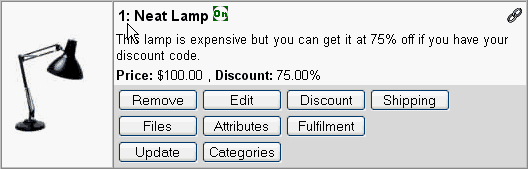
By clicking on the link icon,  , you can copy the ready made code for the add to cart buttons and insert it into your web page. The code will also be generated to work with attributes if you have them. , you can copy the ready made code for the add to cart buttons and insert it into your web page. The code will also be generated to work with attributes if you have them.
|
<!-- Begin AShop Deluxe OrderForm Buy Button -->
<!-- Change the productid ["buyIem(productid,] to correspond with the AShop productid that appears next to each product in the Administration Panel > Edit Catalogue for each product. If the discount input is not needed, change the type="text" to type="hidden" -->
<form style="margin-bottom: 0px;" action="" onSubmit="return buyItem(productid,this.discountcode.value,this.quantity.value)">
<font face="Arial, Helvetica, sans-serif" size="2">Quantity:
<input type="text" name="quantity" size="6" value="1" style="border: 1px solid black; background: #ffffff; width: 30px; font: 11px verdana, arial, helvetica; color: #000000;">
<br>
<input type="image" border="0" name="imageField" src="images/buysp.gif" width="111" height="21" align="bottom">
<br>
Discount code <font size="1">[Optional]</font> <br>
<input type="text" name="discountcode" size="18">
</font>
</form>
<!-- end Buy Button -->
Locating OrderForm Pages In Directories Below The AShop Root
The script and php code in the head of each page that uses the OrderForm method has some relative file paths that must be changed if the OrderForm web page is located in a directory below the AShop root (where catalogue.php is located).
If the page is located one directory down, add a "../" before each of the following file paths in the head script and php.
../buy.php
../license.php
../admin/config.inc.php
../counter.php
Each ../ instructs the script to go up one directory level. If the OrderForm page is located three directory levels down, you would add three of these. For instance; If the page is located in ashop/directory1/directory2/directory3/OrderFormPage.html, The head script files would look like the following.
../../../buy.php
../../../license.php
../../../admin/config.inc.php
../../../counter.php
The View Cart and Check Out hyper links and image links also must be adjusted when the OrderForm page is located below the AShop root directory, but if you compose the pages using an HTML editor such as DreamWeaver or FrontPage, the editor usually adjusts relative links automatically within the page body when you move a file.