Fulfilment and Automation
Previous  Top  Next

Fulfilment is an automated process that sends customer, order and delivery information to a third party person, service, or software. It can also send a set of instructions to an external or third-party software.

Fulfilment options are first created in the admin panel through the Store Configuration > Fulfilment menu.
There is no limit to the number of fulfilment options that can be created.
clip10022

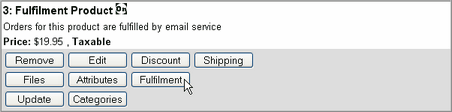
Then, each product is assigned to a fulfilment option through the Edit Catalog menu.
clip10023

Fulfilment products are grouped for each order.
Multiple products in the same order are automatically grouped for each fulfilment option. For instance, if five products are ordered, with two using fulfilment option A and three using fulfilment option B, only two fulfilment notices will be sent; one with two products for A, and one fulfilment with three products for B. (not 5 individual fulfilments)


Collect Shipping Information
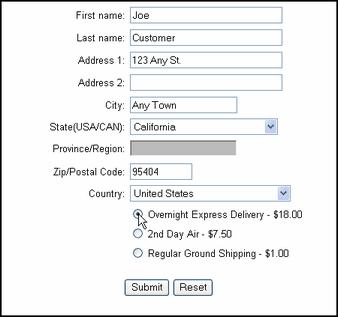
Shipping information is collected in the shopping cart before check out. Every product that uses a fulfilment method, which requires shipping information must have a shipping calculation method set for it. By having a shipping method set, each product causes the shipping information form page to appear before customers can check out. To activate the shipping information page without actually adding any shipping to the order, set the shipping type for the product to Flat Rate and set the flat rate amount to .0001. This will activate the shipping form without adding a measurable amount.
clip10025

Fulfilment Option Types
There are several types of fulfilment options, which can be used in many different ways.

eMail Fulfilment
The email fulfilment option sends the order information to an email address or list of email addresses.

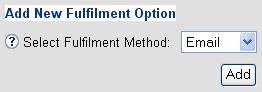
1. To create a new email fulfilment option, navigate to the Fulfilment menu, select the Email and click Add.
clip0041
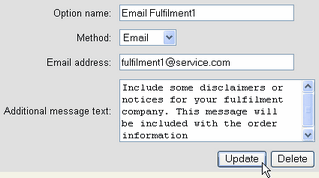
2. Set the email address and additional message text, which will be included in fulfilment notices, and click the Update button. To send notices to multiple email recipients, separate them by a comma... email@service.com, fulfilment@ashop.com

clip0043
3. Assign products to fulfilment option.
clip0044

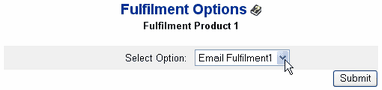
Select the fulfilment option that the product will activate when it is ordered and then click the Submit button.

clip0045
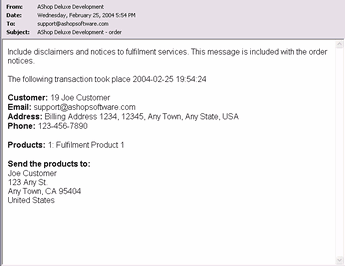
When a product with an email fulfilment option is ordered, notice is sent with customer information, products ordered and the additional message text. Products in an order that use the same fulfilment option are grouped together so that there is only one fulfilment notice sent for each fulfilment option and it includes all of the products that use the same fulfilment option.
clip0047

Swift CD Service
Swift CD (www.swiftcd.com
) is an on demand CD duplication and fulfilment service. The Swift CD fulfilment option sends an email to Swift CD with an attached batch order file formatted according to their specifications. An unlimited number of fulfilment options can be created to use the Swift CD method and each fulfilment option that uses the Swift CD method can have its own user id (the customer id you get when you sign up at www.swiftcd.com) which means that you can sell CD's for different Swift CD accounts from the same shopping cart.

1. To create a new fulfilment option for Swift CD, navigate to the Fulfilment menu and select Swift CD.
clip10024

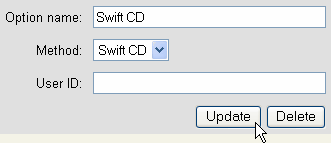
2. Enter an Option name and User ID. You can rename the Option name to any combination of characters. The User ID must be an active Swift CD account.
clip0042
3. Assign each product to the Swift CD fulfilment option through the Edit Catalog menu. For products assigned to a Swift CD fulfilment method, an email is sent to Swift CD when they are ordered. The email includes an attachment, which is specifically designed to work with the Swift CD fulfilment system.


Automation Fulfilment
The automation fulfilment option interprets data from AShop and posts it to a third party application. The data can be posted in a variety of ways. Each fulfilment option that uses the automation method can be programmed separately. There is no limit to the number of fulfilment options that can use the automation method.

The Automation fulfilment feature lets you pass the order information for each product separately to an external script after a customer has completed an order. This makes it possible to integrate AShop Deluxe with almost any type of third party software. For example you can use this to automatically activate a web hosting account when it has been paid or you can add your customer to a mailing list using a software that isn't already supported by AShop or you can activate a service on another website or even another server for your customer.

1. To set up Automation fulfilment option, navigate to the Store Configuration > Fulfilment menu, select Automation and click Add.
clip10026
2. Set Automation Parameters
·Option name is just for your own reference and can be set to anything you want.  
clip10027
·URL to external script or software can be a relative URL, for example: ../activate.php  
or it can be an absolute URL, for example: http://www.yourdomain.com/cgi-bin/activateaccount.pl
clip10028
·Variable Names - Since each website script can use different names for variables and form fields that they can accept you can map the fieldnames of the fields that AShop sends to match the ones your external software uses. Each field is listed with a box where you can fill in the name your software uses. For example the AShop order ID field can be called: "invoicenumber" if your software needs that name. All fields must be filled in but if you don't use some of them you can simply type in any name that isn't used by your software.  
clip10029
clip10030
·Other Fields + Values - The box labeled "Other fields + values" will let you pass along any other information needed by your external software. For example you can send a username and password. Just put "fieldname=value" on separate lines in the box:  
user=myusername  
password=dfkdifk33  
clip10031  

3. Click Update when you have completed the form to save it.

4. Assign each product to the automation fulfilment option through the Edit Catalog menu.

5. If your product has any attributes you can send them to the external software.
Each one of your products' attributes are listed with a text box that will let you map its' name to the name that is used by the receiving software. For example: if your product has an attribute named "Size" that will let your customer select the size from a number of options and the script that is going to receive the order information sent by the fulfilment option instead calls this information "attribute2" you can enter that into the box next to "Size" for the product.

6. Repeat steps 4 and 5 for all other products that are to use this fulfilment option.

Related Topic: Allow Upload After Order - Fulfilment Automation Example