| 1. | Click on Edit Catalogue.
|
| 2. | Navigate to the product category and either add a new product or click the "Files" button to add a file to an existing product.
|
| 3. | Click the Browse button next to Product Files and navigate to the file on your local machine.
|
|
|
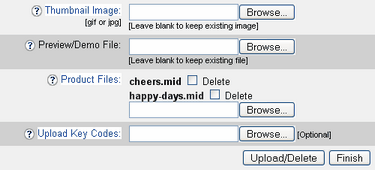
| 6. | Highlight the product file and click Open.
|
| You may upload more than one downloadable file per product, but only one at a time.
|
| 7. | Click the "Upload/Delete" button each time you wish to add or delete a downloadable file.
|
| 8. | When done uploading files click the "Finish" button.
|
| When a product file is present, "Downloadable" will appear in red text next to the product in the Edit Catalogue page and "Direct Download!" will appear in the catalogue that customers see.
|
|
|
|
|
| Uploading Product Files That Are Larger Than The http_upload Limit
|
| The PHP configuration file limits HTTP file uploads to 2 MB on most hosting services. To check the http_upload file size limit that is set on your server, upload and run phpinfo.php.
|
|
|
| To upload product files larger than the limit set by your servers PHP configuration:
|
| 1. | Upload the product file to the ashop/products folder via FTP or using your hosting service's file management program.
|
| 2. | AShop checks to see if there are any product files that have not already been recorded into the database and will display a drop-down selection box within the Add Product or Edit Product window where the file can be selected.
|
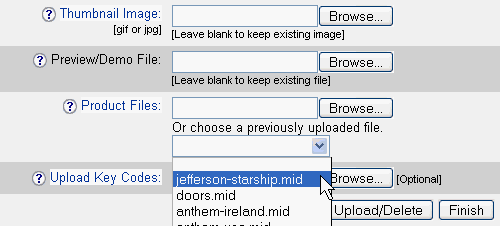
| 3. | Choose a file from the previously uploaded file selection box.
|
| 4. | Click the "Upload/Delete" button, AShop will rename the product file and record the original filename into the database.
|
| 5. | When finished adding product files click the "Finish" button.
|
Update Notification & Delivery
| The update feature emails a notice to each customer who has purchased a specific product. If a file is uploaded, the update notice includes a link and password to download the file. If a file is not uploaded, only the message text or html is sent.
|
|
|
| For each product there is a button labeled Update on the edit product page.
|
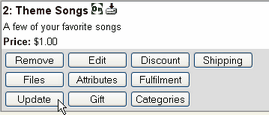
| Click that button to see a form where you can select an update file, choose the time period the customer should have bought the product to get the update, choose how many days the download will be available, and add the subject and message text for the email notice to customers.
|
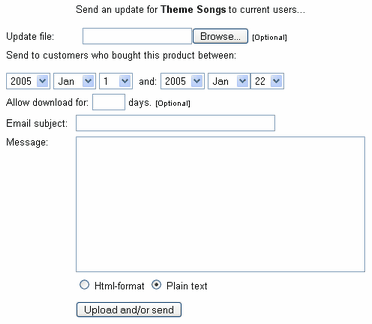
| The update notification can be sent in both Plain text or Html formats.
|
|
|
| When the form is submitted, the file is uploaded to the updates directory and the message with a password and download link is sent to all customers who should receive the update.
|
|
|
| When customers download the file, a notice is emailed to the shop administrator with the customers name and IP address.
|